Windows PC · overwatch2cheat.org
Overwatch 2 Combat assist
Combat assist settings decide when a target is eligible and how aim movement transitions. Field of view is the targeting area. Smoothness is how gradually the crosshair moves toward that target.
Combat assist controls for Overwatch 2
Every control below is part of the documented Overwatch 2 menu.
Core
Enable combat assist
Turns the aiming module on or off. Leave it off until the other targeting controls are set the way you want.
Targeting
Field of view
Sets the targeting area. A smaller field keeps the module closer to the center of the screen. A larger field includes targets farther from the crosshair.
Smoothness
Controls how gradually the aim movement transitions toward the selected target. Higher smoothness slows that transition.
Max distance
Sets the maximum range at which targets can be considered. Players beyond the slider are left out of targeting.
Ignore knocked players
Skips downed players so the module can keep evaluating players who are still up.
Save target
Keeps the current target selected instead of switching as soon as another player enters the field of view.
Aim lock
Holds the selected target while the control is active, instead of re-picking a target on every update.
Visibility check
Accounts for whether an enemy is visible, where the build supports that check, before the target is used.
Smoothing
Humanized smoothness
Applies an extra smoothing style on top of the main smoothness slider.
Humanized smoothness percent
Sets how strongly humanized smoothness affects the aiming movement.
Hitbox
Select custom hitbox
Lets you select a supported targeting area, such as the hitbox the module should prefer.
Draw
Draw FOV
Draws the active field-of-view area on screen so you can see the targeting zone.
Draw crosshair
Draws a crosshair overlay for the combat assist module.
Draw target
Marks the target currently selected by the module.
Draw target type
Chooses how the selected target is drawn on screen.
Draw thickness
Sets the line thickness used by the draw options.
In-game preview
In-game ESP and wallhack screenshots from the Overwatch 2 cheats package on Windows PC.
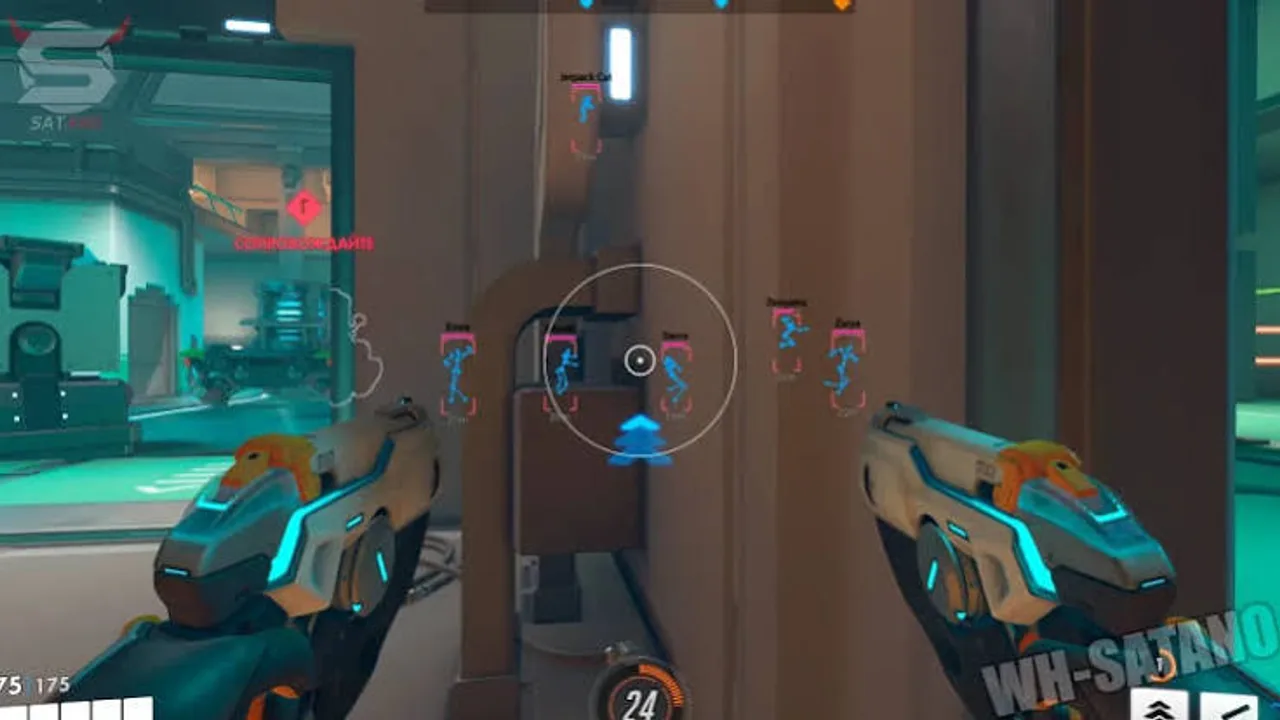
ESP through cover
In-game previews of player ESP, skeleton overlays, and distance readouts from live Overwatch 2 matches on Windows PC.
Combat assist FAQ
Pricing, delivery and compatibility before you buy Overwatch 2 Cheats.
Where do I buy Overwatch 2 Cheats?
Use Buy Overwatch 2 Cheats on the product page. Current price and access length are shown at checkout. The button stays on this site; purchase continues on the checkout page.
Which Overwatch 2 cheat features are included?
Combat assist, player ESP, enemy ESP, wallhack, health and ult ESP, radar colors, key binds, and config profiles. See /features for the grouped list and each control explained.
Will this keep my account safe or stop bans?
No. This site does not claim the product is safe for a main account or free from penalties. Using third-party software can violate game terms. You accept that risk.
What happens after an Overwatch 2 update?
Game updates can break a build. Check product status at checkout before you load after a patch. If status is updating, wait.
How is access delivered?
Delivery is digital to the email used at checkout. If it does not arrive, check spam and then use the Support page with your order reference.
What is the refund policy?
Digital access follows the Refunds page. Failed delivery can qualify. A change of mind after working access is generally not refunded. Bans are not an automatic refund.